Main Gallery Area
Featured
Choose your tutorial's visibility between your internal and external DA!
You can now use voice synthesizers for your walkthroughs!
You can now add several game-based step types to your DA!
Setup and Access
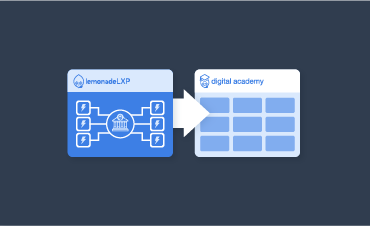
There are two different ways an employee can access their internal academy - we'll show you how!
Learn how internal employees can share content with their clients, members, and colleagues!

Let's go over the different ways you can search for content in your Digital Academy.
Learn how to add a video transcript to your DA videos!
You can now create a custom global footer for your DA!
You can now track events with Google Analytics v4! We've added an option to include the measurement ID, which is required for Google Analytics 4 tracking.
Let's go over the Public Share features you can include (or not!) for your Digital Academy Email Shares.
Can't choose just one walkthrough within a single category? Share the category instead!

Add a description to each of your DA categories with ease!
This demonstration will show you how to move a demo. You'll learn how to transfer it from one channel to another, or to a different category altogether. We'll guide you through the process step by step
Quickly share information on your DA page with your DA Banner!
Channels
- Custom Channel Design: Tailor the UI/UX of each channel.
- Enhanced Content Discovery: Implement intuitive navigation structures to improve learner access to relevant resources.
With the new channels feature for DA Premium users, your library can house even more tutorials in a neat and orderly way! But first, you need to create some channels - this walkthrough will show you how!
You've got the channels feature ready to go - now what? This walkthrough will show you how to enable each channel and what it looks like LIVE for your DA visitors!

What to give your channel its own look and feel? Look no further! This walkthrough will show you how.
When you have an announcement for one particular channel, or you simply need to customize it with additional functions, add some Javascript!
Analytics

Find out which walkthroughs were shared with your Academy Demo Shares Report!
Learn how to create a Looker Studio report for your Google Analytics 4 account to share internally and externally.
Learn how to navigate the Reports Snapshot in Google Analytics 4 to get key insights about your Digital Academy's traffic, user behaviour, and top-performing content.
Let's walkthrough the Traffic Acquisition section! Learn how to track with channels- like organic search, email, direct, etc and how using UTM tags can improve the accuracy of tracking.
Let's dive into the Engagement section to explore what users are doing once they visit your Digital Academy. Learn how to track key actions like demo starts, video views, and page interactions. By understanding how users engage with your Academy, you can improve their experience and keep them coming back.